
Order drinks from your phone at the event
Some events let you order from the bar on your phone and pick it up at the counter. There are two ways in.
Scan the Menu code. Point your phone's camera at the Menu code at the venue. The menu opens in your browser, with no app and no ticket needed. Tap items to add them, press Order, give a Name and a Mobile number, pick a tip and pay. Your code is on the screen, and a text from shabanga Tickets brings you back to it. If the bar is making orders, the screen says Order’s in and follows the round to Ready — head to the counter!, and we text you when it is ready. Otherwise it says Show this at the counter. On some phones that have the shabanga app, the code opens the menu in the app instead.
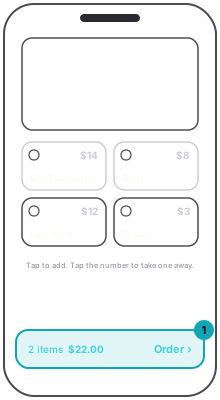
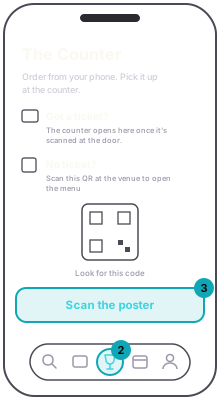
In the app. The wine-glass button in the bottom bar is always there. It lights up once your ticket has been scanned at the door; press it and the menu opens. No ticket, or not scanned yet? Press it and Scan the poster to scan the Menu code. Merch, if the event sells any, is on the event's page any time.
Show your code at the bar; they scan it and hand the round over. No tab, no card at the bar.
The menu opens only once the event has something on it, and closes when the event ends.