
Your people. Import, find, export and remove contacts
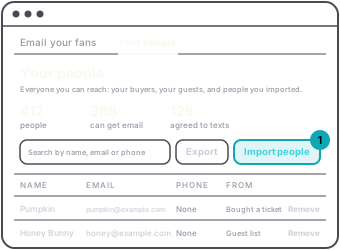
Your people lists everyone you can reach: people who bought a ticket to any of your shows, guests on your lists who have an email, and people you imported. The top shows how many people there are, how many can get email, and how many agreed to texts. Only you see these people. No other organizer can see or message them.
Import people brings in a spreadsheet of people you have worked with before. It takes a CSV file, or an Excel or Google sheet saved as CSV, from Eventbrite, Partiful or a sheet you kept. You can also paste it. Each person needs an email or a phone; a name is optional.
- Upload. Drop the file, press Choose file, or paste it and press Next.
- Match columns. Each column in your file is matched by its heading to Name, First name, Last name, Email, Phone, Agreed to texts or Skip. Change any that are wrong, then press Next.
- Texts and import. Say who agreed to get texts from you: The column says who agreed, All of them agreed, or None of them, or I'm not sure. Only people who agreed can be texted. Tick the box confirming these people bought from you or signed up with you before and you're allowed to contact them, then press Import.
Someone already in Your people is matched by email, then by phone, and the import only adds what was missing. Rows with no email or phone are skipped, and so is anyone who unsubscribed from your emails.
Search finds anyone by name, email or phone. Export downloads everyone on the list as a CSV with Name, Email, Phone, Agreed to texts and From.
Remove takes someone off your list. They stop getting your emails and texts. Their tickets are not touched, and they can still get their tickets sent again. A removed person comes back if they buy a ticket to one of your shows. If a later import includes them, the import lists them and you can tick anyone to re-add, or Re-add all.
Everyone on Your people who can get email is who Email your fans reaches.