
Let someone scan without an account. The link and the PIN
Whoever is working the door needs the app, not an account. They install shabanga from the App Store or Google Play, and you send them two things: the Door link and the door PIN.
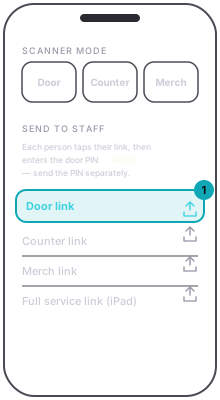
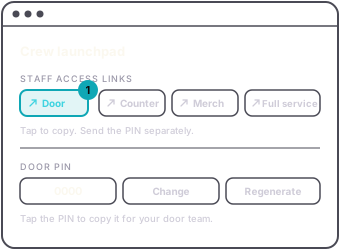
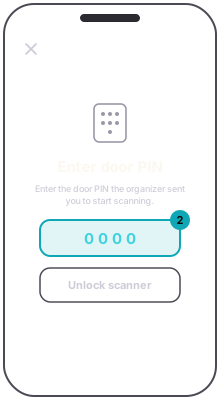
The link opens the scanner for your event, straight into door mode. On a phone that is not signed in, the PIN is what unlocks it. Send it separately, by text or in person, never baked into a post. Anyone with both can check people in. A phone that is not signed in cannot scan with the link alone. A phone signed in to any shabanga account opens the scanner without asking for the PIN.
The same screen has a Counter link and a Merch link, which open the scanner in those modes for whoever is on the bar or the table. Same PIN.
A link opened on a phone without the app says scanning needs the app and where to get it. Install first, then open the link again.
For crew who work your nights often, add them to your team instead. They sign in with their own account and see the night's tools without a PIN: see bring your crew onto a night.